
Workstation Ergonomics
Everyday Visual Comfort: Optimizing Screens, Lighting & Posture
Even the most disciplined 5-minute eye exercises cannot fully compensate for a workstation setup that constantly strains your eyes. Making simple adjustments to your monitor position and ambient lighting creates a comfortable visual environment all day long.
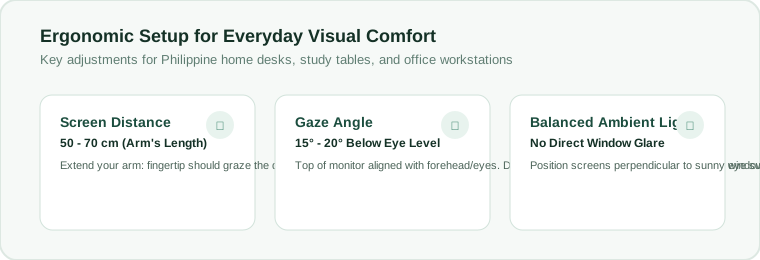
1. Screen Distance: The Arm's Length Rule
Place your computer monitor approximately 50 to 70 centimeters away from your face. A simple way to check: sit back in your normal working posture and extend your arm forward. Your fingertips should just lightly brush the screen surface. Having a monitor too close forces your ciliary muscles to work harder to maintain focus.
2. The Downward Viewing Angle (15° to 20°)
Position your display so the top edge of the screen is at or slightly below eye level. When looking at the center of the display, your eyes should be angled downward by about 15 to 20 degrees.
Why this matters: Looking downward allows your upper eyelids to cover more of the exposed corneal surface, significantly cutting down on tear evaporation compared to looking straight ahead or upward.
3. Managing Philippine Tropical Glare and Lighting
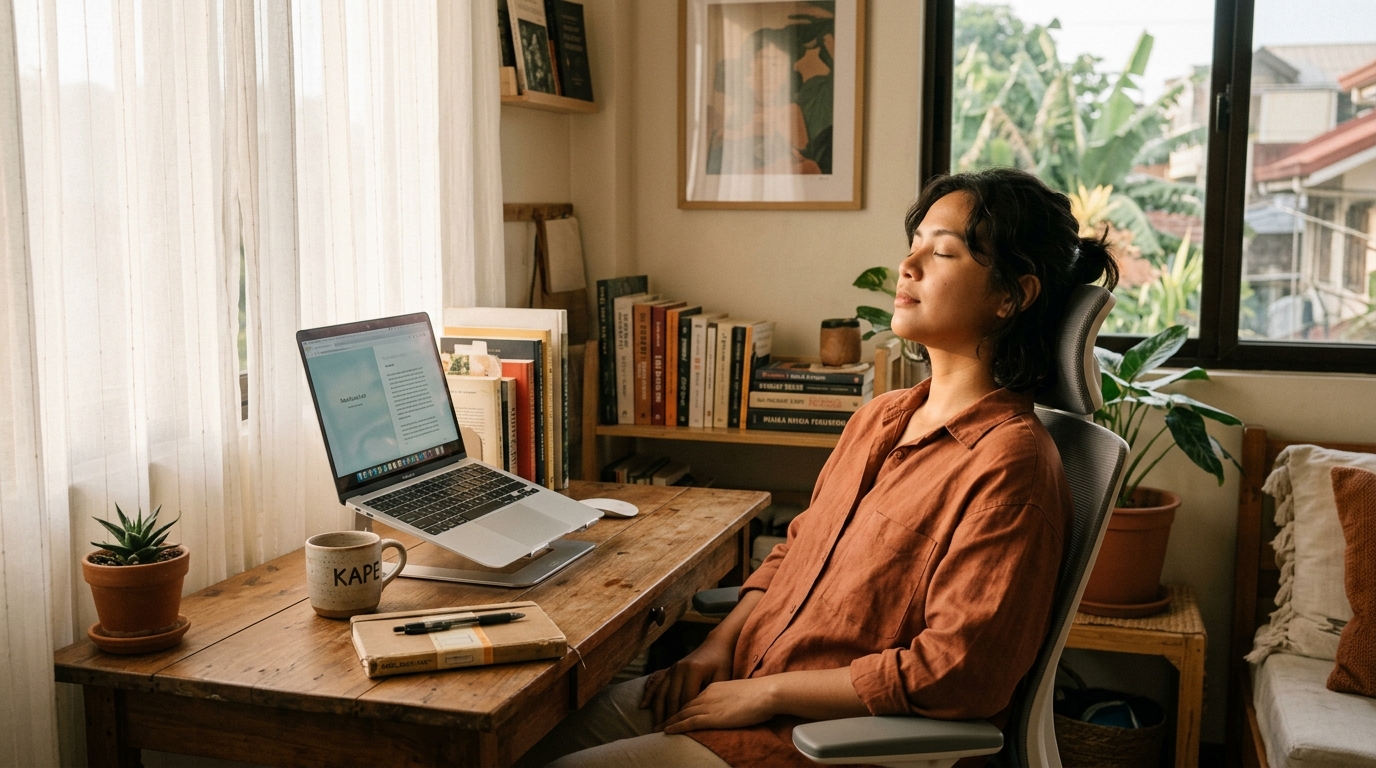
In sunny climates like the Philippines, bright outdoor sunlight streaming through a window can create intense contrast or reflective glare on laptop displays:
- Perpendicular Positioning: Place your desk perpendicular to sunny windows rather than directly facing a window or having your back to one.
- Sheer Curtains or Blinds: Use translucent curtains or blinds to soften harsh midday tropical sunlight.
- Display Brightness Match: Adjust your monitor's brightness so it blends with the ambient brightness of the room. A white document screen should look like a piece of white paper held in the same room—neither glowing like a lantern nor appearing gray and dim.
4. Font Size and Display Scaling
Do not squint at tiny 100% UI scaling on high-resolution displays. Increase your system display scaling to 125% or 150%, or press Ctrl + Plus in your browser to enlarge text comfortably. If you have to lean forward to read text, your font size is too small.
Ergonomic Fact: Good ergonomics and regular 5-minute pauses work synergistically. Ergonomics prevents unnecessary strain from building up, while eye breaks relieve unavoidable muscle tension.